Connect AI Assistants with MCP
Connect Claude, Cursor, Codex, Copilot, or any MCP-compatible AI assistant to MentorStack so it can read and act on your mentoring data: for mentees, mentors, and admins.
MentorStack exposes a Model Context Protocol (opens in new tab) (MCP) server, so any MCP-compatible AI assistant (Claude, Cursor, OpenAI Codex, GitHub Copilot, Windsurf, and others) can read and act on your MentorStack data directly. Ask about upcoming meetings, draft session notes, review goal progress, or surface matches, all without leaving your existing workflow.
The setup is the same for everyone: generate an API key (see API Keys), then point your AI tool at the MCP server. What the assistant can see and do depends on your key. See What you can do below.
Generate your API key
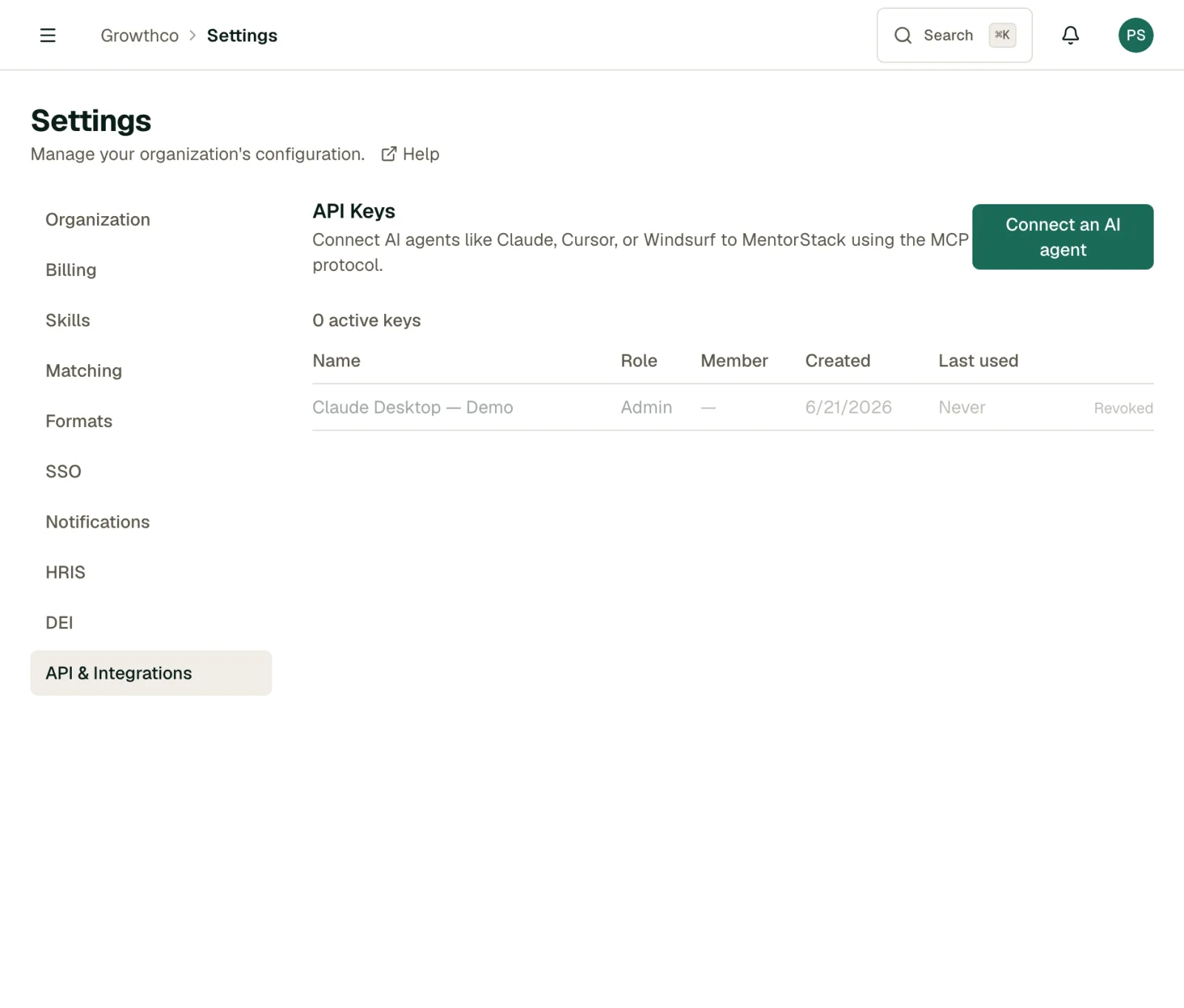
You generate your own key: no admin handoff required. In MentorStack:
- Go to Settings → API & Integrations.
- Under API Keys, click Connect an AI agent.
- Give the key a name (e.g.
Claude Desktop,Cursor agent). - Click Generate key and copy it immediately. The full key is shown only once.
Keys start with ms_live_. As a mentor or mentee, this creates a participant key scoped to your account only: the agent can see your own matches, meetings, messages, and goals, and nothing about other members or org-level data.
Note
Admins have an extra step: choose Admin (full org-wide access: members, matches, reports, all program data) or Participant (then pick the member the key belongs to). That lets admins mint an admin-scoped key or a participant key on behalf of any member. See API Keys for the full breakdown.
Warning
Treat your API key like a password. Anyone who has it can act as you within MentorStack. If a key is ever exposed, revoke it from Settings → API & Integrations and generate a new one.
Connect your AI tool
In every example below, replace ms_live_YOUR_KEY_HERE with the key you generated.
Claude Desktop
Open claude_desktop_config.json (find it via Claude menu → Settings → Developer → Edit Config) and add a mentorstack entry:
{
  "mcpServers": {
    "mentorstack": {
      "url": "https://app.mentorstack.co/api/mcp",
      "headers": {
        "Authorization": "Bearer ms_live_YOUR_KEY_HERE"
      }
    }
  }
}
Save and restart Claude Desktop. A hammer icon in the chat toolbar confirms MentorStack tools are active.
Claude Code
Run this in your terminal:
claude mcp add --transport http mentorstack https://app.mentorstack.co/api/mcp \
  -H "Authorization: Bearer ms_live_YOUR_KEY_HERE"
Verify with claude mcp list: MentorStack should appear with a green status.
Cursor
Edit ~/.cursor/mcp.json (global) or .cursor/mcp.json inside a project folder:
{
  "mcpServers": {
    "mentorstack": {
      "url": "https://app.mentorstack.co/api/mcp",
      "headers": {
        "Authorization": "Bearer ms_live_YOUR_KEY_HERE"
      }
    }
  }
}
Restart Cursor after saving.
Windsurf
Edit ~/.codeium/windsurf/mcp_config.json:
{
  "mcpServers": {
    "mentorstack": {
      "url": "https://app.mentorstack.co/api/mcp",
      "headers": {
        "Authorization": "Bearer ms_live_YOUR_KEY_HERE"
      }
    }
  }
}
Restart Windsurf after saving.
OpenAI Codex
Codex reads its bearer token from an environment variable, so first add your key to your shell profile (~/.zshrc, ~/.bashrc, etc.):
export MENTORSTACK_API_KEY=ms_live_YOUR_KEY_HERE
Then edit ~/.codex/config.toml and add:
[mcp_servers.mentorstack]
url = "https://app.mentorstack.co/api/mcp"
bearer_token_env_var = "MENTORSTACK_API_KEY"
Or add it in one command:
codex mcp add mentorstack --url https://app.mentorstack.co/api/mcp \
  --bearer-token-env-var MENTORSTACK_API_KEY
Start Codex and run /mcp to confirm mentorstack shows its tools.
GitHub Copilot CLI
Edit ~/.copilot/mcp-config.json:
{
  "mcpServers": {
    "mentorstack": {
      "type": "http",
      "url": "https://app.mentorstack.co/api/mcp",
      "headers": {
        "Authorization": "Bearer ms_live_YOUR_KEY_HERE"
      }
    }
  }
}
Restart Copilot CLI and run /mcp show to confirm MentorStack is listed. You can also configure it interactively from a Copilot session with /mcp add.
What you can do
What your assistant can do depends on your key's scope.
Mentees (participant key): your assistant can:
- Review your current goals and progress
- Create or update goals from your mentoring conversations
- Check upcoming meetings and prepare questions
- Message your mentor
- Build a career plan and match it against your goals
- Export your Growth Portfolio
Mentors (participant key): your assistant can:
- List your upcoming meetings and mentees
- Schedule or reschedule meetings
- Draft and send messages to your mentees
- Pull up goal progress for any of your mentees
- Log meeting summaries and action items
- Surface your mentoring stats and badges
Admins (admin key): everything above, org-wide:
- Manage members, matches, and cohorts
- Run program analytics and reports
- Configure skills, surveys, and matching
Tip
A good first prompt: "What meetings do I have this week, and is anyone behind on their goals?" Your assistant pulls live data and answers directly. For in-app AI features that don't need a separate tool, see AI Copilot Features.
Troubleshooting
Tools don't appear in my AI tool Restart the app after editing the config file. The MCP server list is only loaded on startup.
Getting an Unauthorized error The raw key is only shown once when generated. If you didn't copy it in time, revoke it and generate a new one from Settings → API & Integrations.
Can't access data I expect to see Participant keys are scoped to your own account by design: you can't reach another member's records or org-level data with one. If you need broader access, an admin can generate an admin-scoped key. Contact your admin if you think your key has the wrong permissions.