Connect your Outlook calendar
Connect Microsoft Outlook (Microsoft Graph) to schedule meetings and get reminders without leaving MentorStack
Connecting your Outlook calendar lets you see your free slots when scheduling a meeting, automatically add confirmed meetings to your calendar, and receive reminders. MentorStack connects to Outlook through Microsoft Graph.
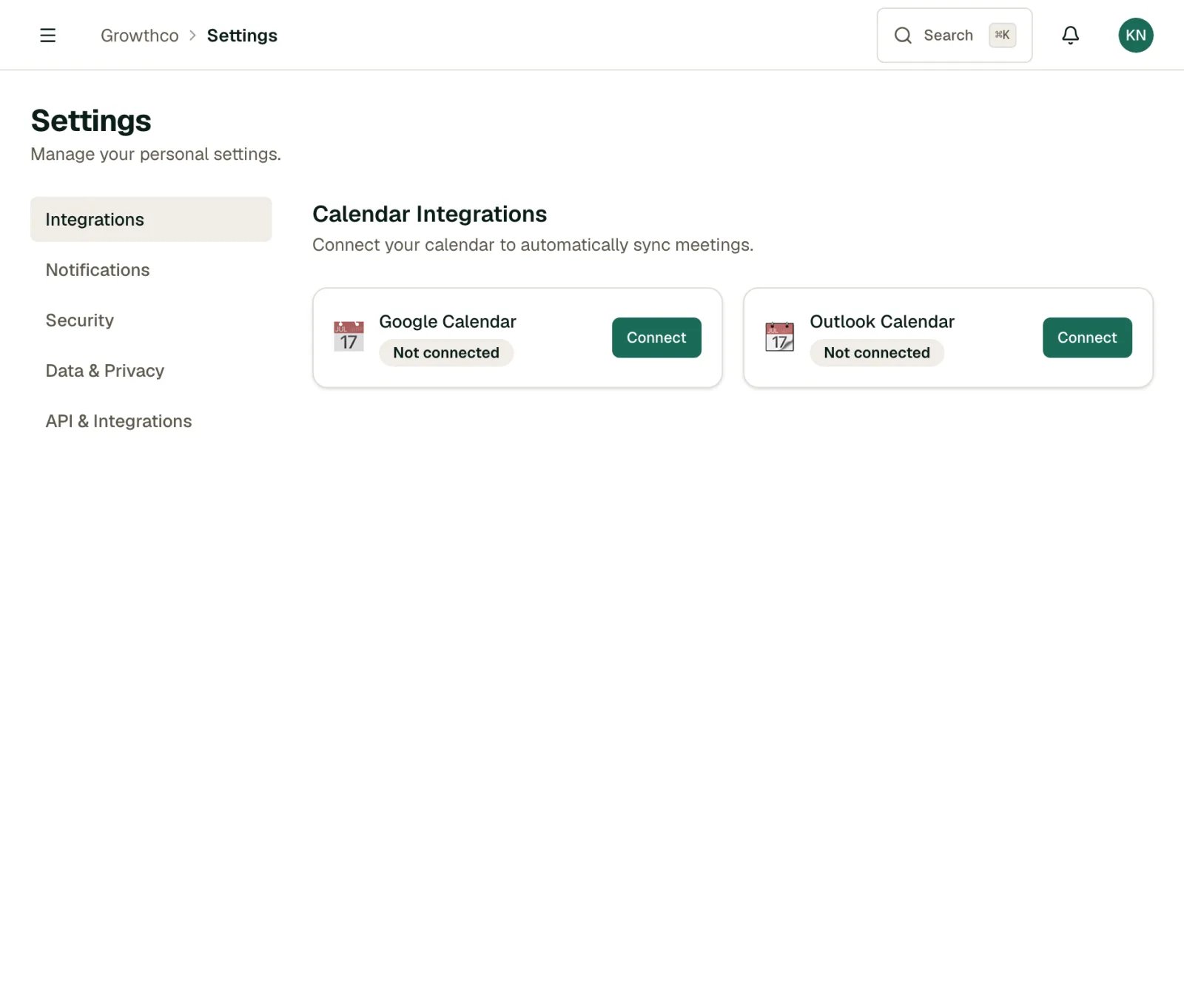
Connecting your calendar
Go to Settings → Integrations (?tab=integrations) and click Connect on the Outlook Calendar card.
Note
The ?tab=integrations link only opens the Integrations tab for mentors and mentees. Admins have a different Settings layout without an Integrations tab; an admin following this link lands on the default tab instead.
You'll be redirected to Microsoft to authorize access. MentorStack requests read access to check free/busy times and write access to create events.
After connecting, a green "Connected" status will appear in your settings.
How scheduling uses your calendar
When you or your mentor/mentee schedules a meeting:
- MentorStack reads your free/busy blocks from your Outlook calendar (no event details, just availability)
- Open slots that work for both participants are highlighted
- When a time is confirmed, MentorStack creates a calendar event for both participants
- The event includes a meeting link if you've added a video conferencing default (e.g. Teams)
If you haven't connected a calendar, you can still schedule meetings manually. You just won't see availability suggestions.
Reminders
Calendar events created by MentorStack include Outlook's default reminders (typically 30 minutes and 10 minutes before). You can adjust these directly in your calendar app.
MentorStack also sends its own email reminder 24 hours before each meeting by default; admins can change the lead time. This is independent of your calendar app.
Disconnecting
Go to Settings → Integrations and click Disconnect on the Outlook Calendar card. As above, this tab is on the mentor/mentee Settings page, not the admin one. MentorStack will stop reading your availability and creating new calendar events. Existing calendar events are not deleted.
Troubleshooting
"No available slots found": If MentorStack can't find overlapping free time, it falls back to letting you pick any time manually. Try expanding your availability window in your profile settings.
Meetings not appearing in calendar: Check that you authorized write access during the OAuth flow. If you only granted read access, disconnect and reconnect to re-authorize with full permissions.
Calendar shows as disconnected after reconnecting: Outlook requires re-authorization after a password change. Disconnect and reconnect to refresh the token.
Google Calendar is not available yet.