Creating & Managing Matches
How to pair mentors with mentees and manage ongoing relationships
The quality of your matches is the single biggest predictor of program success. A well-paired mentor and mentee build trust faster, meet more consistently, and achieve meaningful goals. A poor match often leads to disengagement within weeks. The Matches page lets you create, monitor, and manage mentor-mentee pairings with the visibility you need to intervene early when something isn't working.
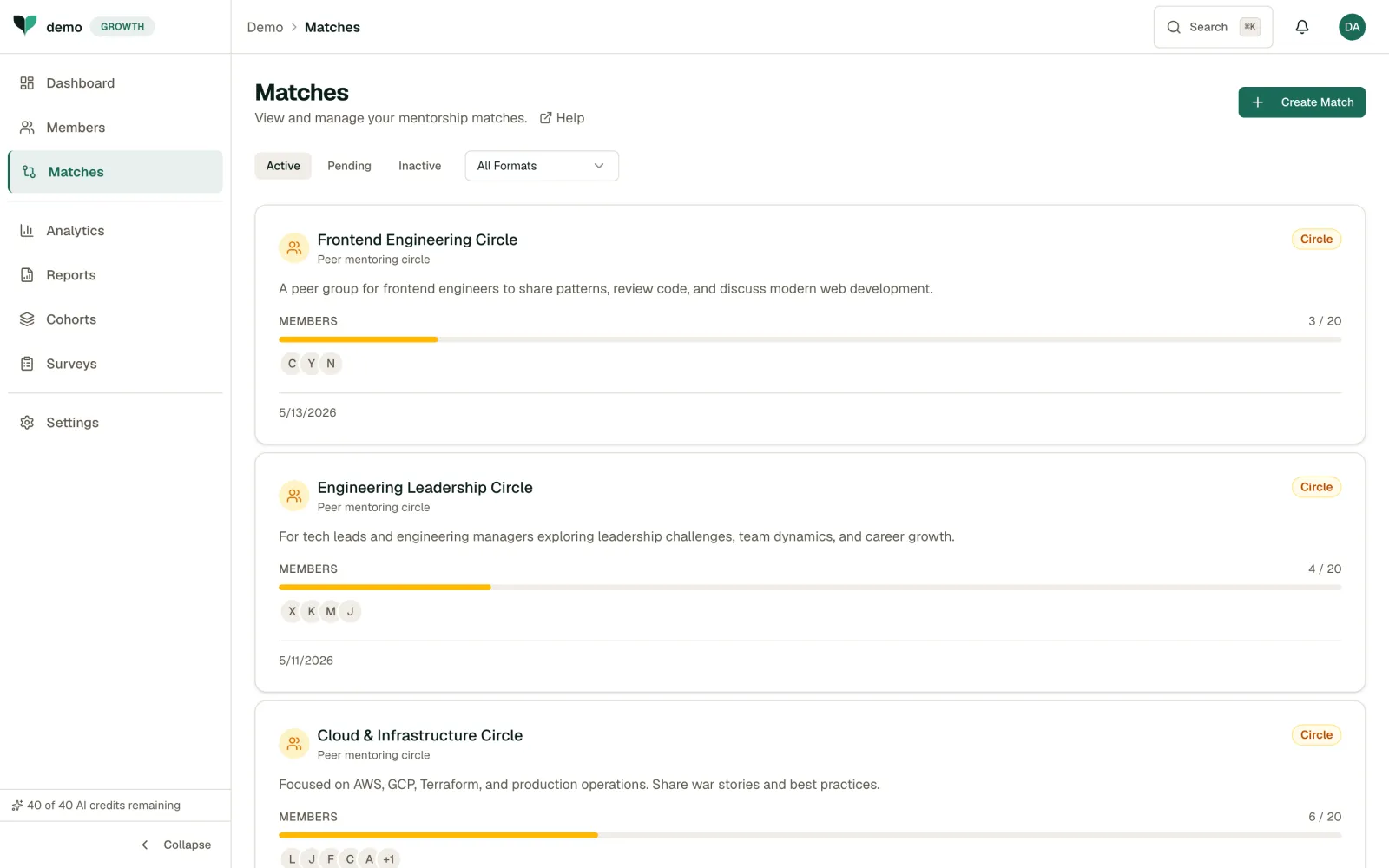
Creating a Match
- Click Create Match on the matches page.
- Choose a format: 1:1, Group, Circle, or Reverse.
- Select the participants for that format: for a 1:1, pick a mentor and a mentee.
- Click Create Match to finalize the pairing.
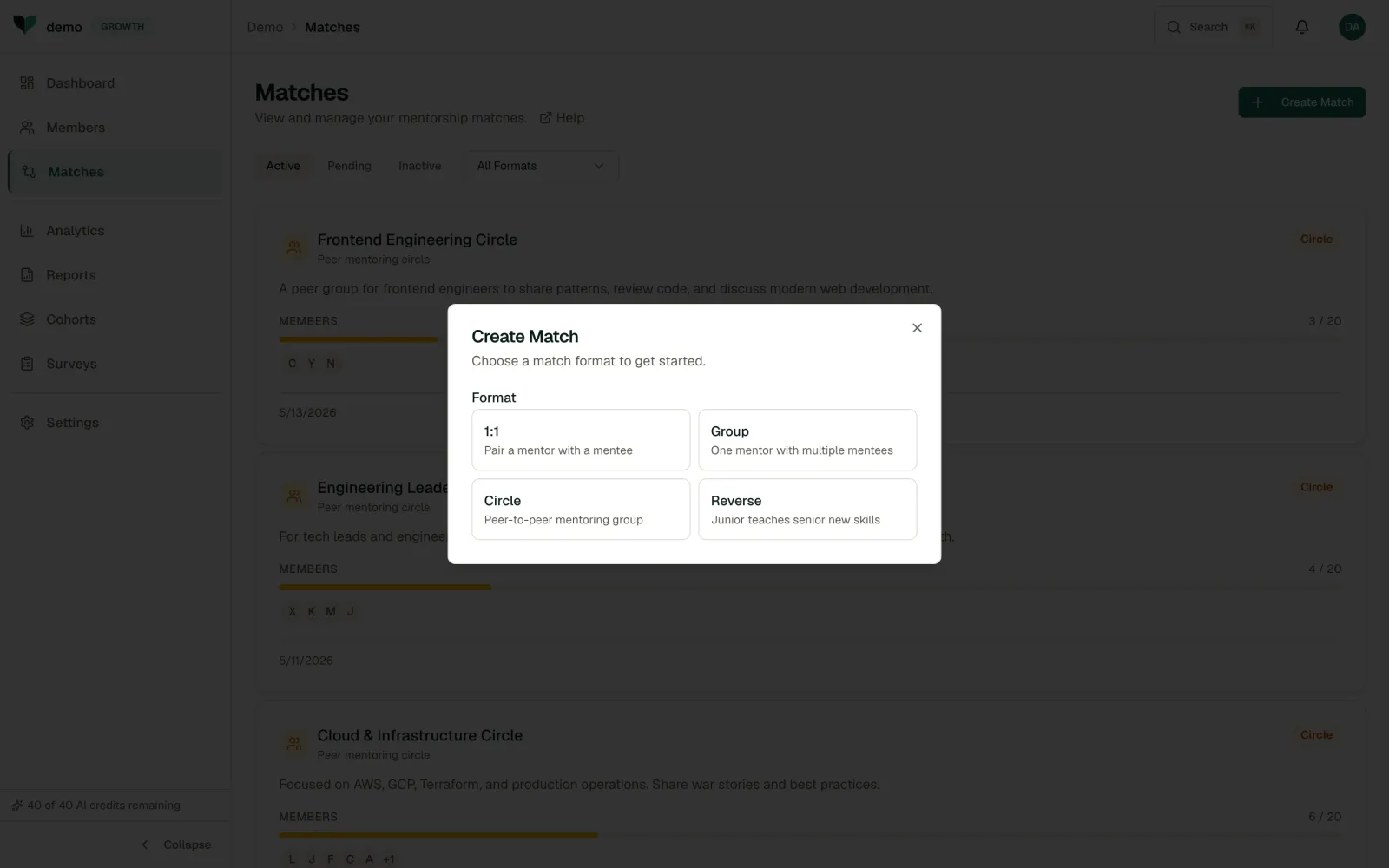
Both the mentor and mentee will be notified by email when a match is created.
Tip
The strongest matches share a clear development goal, not just a job title. Look at what the mentee wants to grow in and find a mentor who has lived that journey. Shared skills and department can help, but alignment on objectives is what drives real engagement. Review members' profiles before matching. The few minutes you invest here pay off in months of productive mentoring.
Monitoring Matches
The matches list shows each pairing with key indicators:
- Status: Pending, Active, Paused, Completed, Declined, Cancelled, or Escalated
- Meetings: Number of meetings held
- Last activity: When the pair last interacted
- Health: An engagement indicator based on meeting frequency and messaging
Managing a Match
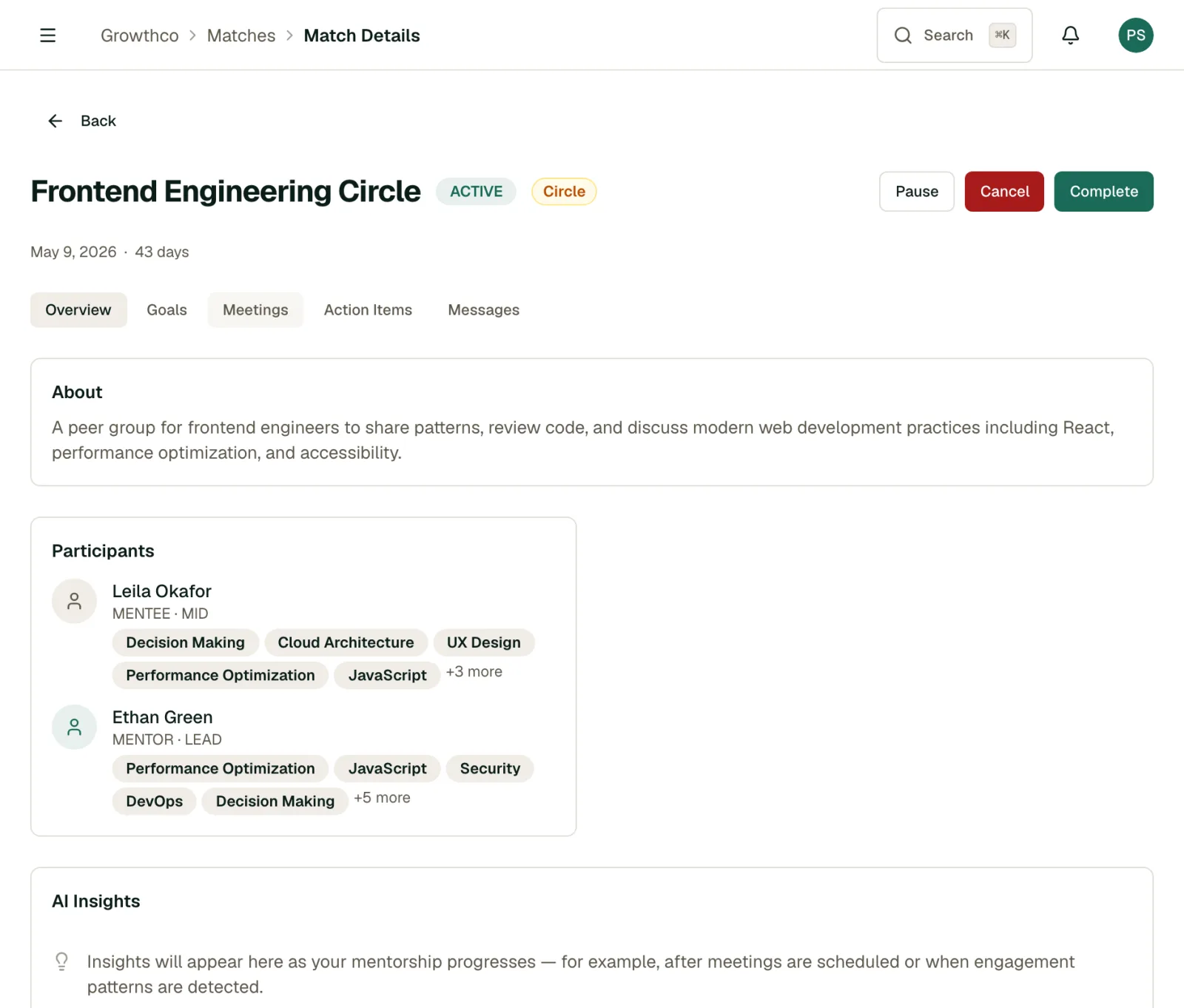
Click on any match to view details. From there you can:
- Pause: Temporarily suspend the relationship
- Resume: Bring a paused match back to active
- Cancel: End the match permanently, without marking it complete
- Complete: Mark the mentoring relationship as finished
Warning
Completing a match is a one-way action. Create a new match if the pair needs to restart.
Getting the Most Out of Matching
- Check match health weekly. Pairs that go quiet in the first three weeks rarely recover on their own. A quick nudge from you can get things back on track.
- Don't force longevity. A focused 8-week match that achieves a specific goal is more valuable than a 6-month pairing that drifts. Complete matches when the objective is met and re-match with fresh goals.
- Watch for lopsided ratios. If a mentor has three or more active mentees, engagement quality drops. Aim for one-to-one or one-to-two pairings.
- Debrief completed matches. Ask both parties what worked. Their answers will make your next round of matching sharper.