Single Sign-On (SSO)
Set up WorkOS-managed single sign-on so your team logs into MentorStack through Okta, Azure AD, Google Workspace, or another identity provider.
SSO lets your organization's members sign in to MentorStack through your existing identity provider instead of a MentorStack password. MentorStack manages the connection through WorkOS, so you don't fill in SAML or OIDC fields yourself: WorkOS handles the protocol details for whichever identity provider you use.
Note
SSO is available on the Growth plan and above. On Free and Starter, the SSO tab shows an upgrade prompt instead of the setup flow.
Before you start
You'll need:
- Admin access to your organization's identity provider (Okta, Azure AD, Google Workspace, or another provider WorkOS supports).
- Someone on your IT or identity team who can complete the connection in the WorkOS Admin Portal, since that step happens outside MentorStack.
- A list of the email domains your organization uses, for the Verified Domains step below.
Go to Settings, then the SSO tab.
Setting up SSO
- Click Set up SSO. This starts a WorkOS connection for your organization and generates a setup link.
- Click Open WorkOS Admin Portal and hand that link to your IT or identity provider admin. They complete the connection to your identity provider there, not in MentorStack.
- Once the connection exists, the SSO tab shows a Get setup link button if you need to reopen the portal, for example to fix a misconfigured attribute mapping.
- Set your Verified Domains (next section) before members try to sign in.
- Click Validate connection to confirm WorkOS can complete a login through your identity provider.
The status badge at the top of the tab tracks progress: Not configured, Configured (unvalidated) once setup has started, Validated after a successful validation, and Enforced once you require SSO for everyone.
Verified Domains
The Verified Domains card lists the email domains allowed to provision new accounts through SSO. This is declared by an admin, not checked against DNS: it exists to stop your organization's SSO connection from creating an account on a domain you haven't claimed.
Enter a comma-separated list of domains (for example acme.com, subsidiary.acme.com) and click Save domains.
Warning
Leaving the Verified Domains field empty blocks all new SSO sign-ins. Add every domain your members sign in with before enforcing SSO, or new members won't be able to log in through your identity provider.
Validating your connection
Click Validate connection to confirm the connection works. A successful validation moves the status badge to Validated and unlocks the SSO Enforcement toggle. SSO Enforcement is off by default; you can validate your connection and let members opt into SSO before you require it for everyone.
Enforcing SSO
Turning on SSO enforcement requires every member of your organization to log in through your identity provider. Password-based login is disabled for everyone, including you. You can only turn it on after validating your connection.
Warning
Confirming this switch shows a warning: password sign-in stops working for every member, including you. Make sure you can sign in through your identity provider before you enforce SSO. There's no way to undo this from inside the app if you get locked out.
Requiring two-factor authentication
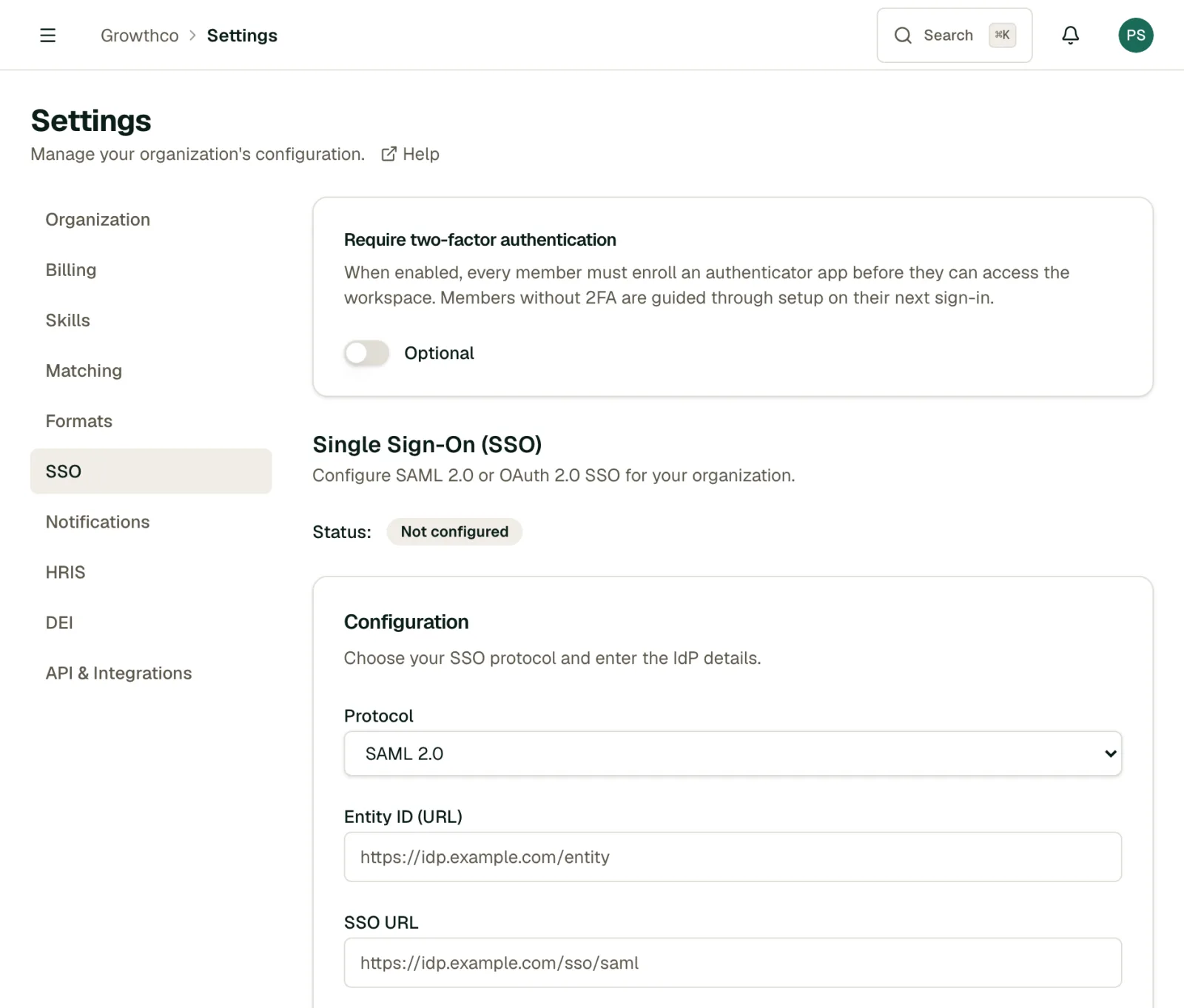
The Require two-factor authentication card also lives on the SSO tab. It's a separate, org-wide setting that isn't plan-gated: any admin, on any plan, can require every member to enroll an authenticator app before they can access the workspace. This applies whether or not SSO is configured.
How members sign in
- Before enforcement, members can sign in with either a MentorStack password or your identity provider, if they're on a Verified Domain.
- After enforcement, password login is disabled, and everyone signs in through your identity provider.
- Members whose email domain isn't on the Verified Domains list can't sign in through SSO until you add their domain.
Troubleshooting
Validation fails: Check that the connection was fully completed in the WorkOS Admin Portal, not just started. Reopen the portal with Get setup link and confirm your identity provider admin finished every required step there.
A member can't sign in through SSO: Confirm their email domain is in Verified Domains. An unlisted domain blocks new SSO sign-ins for that domain, even if the WorkOS connection itself is validated.
The Enforce SSO switch is disabled: You need a validated connection first. Click Validate connection and confirm it succeeds before enforcement can be turned on.