Surveys & Feedback
How to create surveys and collect feedback from program participants
The best mentorship programs aren't designed once. They're refined continuously based on participant feedback. Surveys close the loop between what you think is working and what mentors and mentees actually experience. Regular feedback collection helps you catch issues early, validate your program design, and build the evidence base you need to justify continued investment. The Surveys page lets you collect structured feedback to assess program effectiveness and identify areas for improvement.
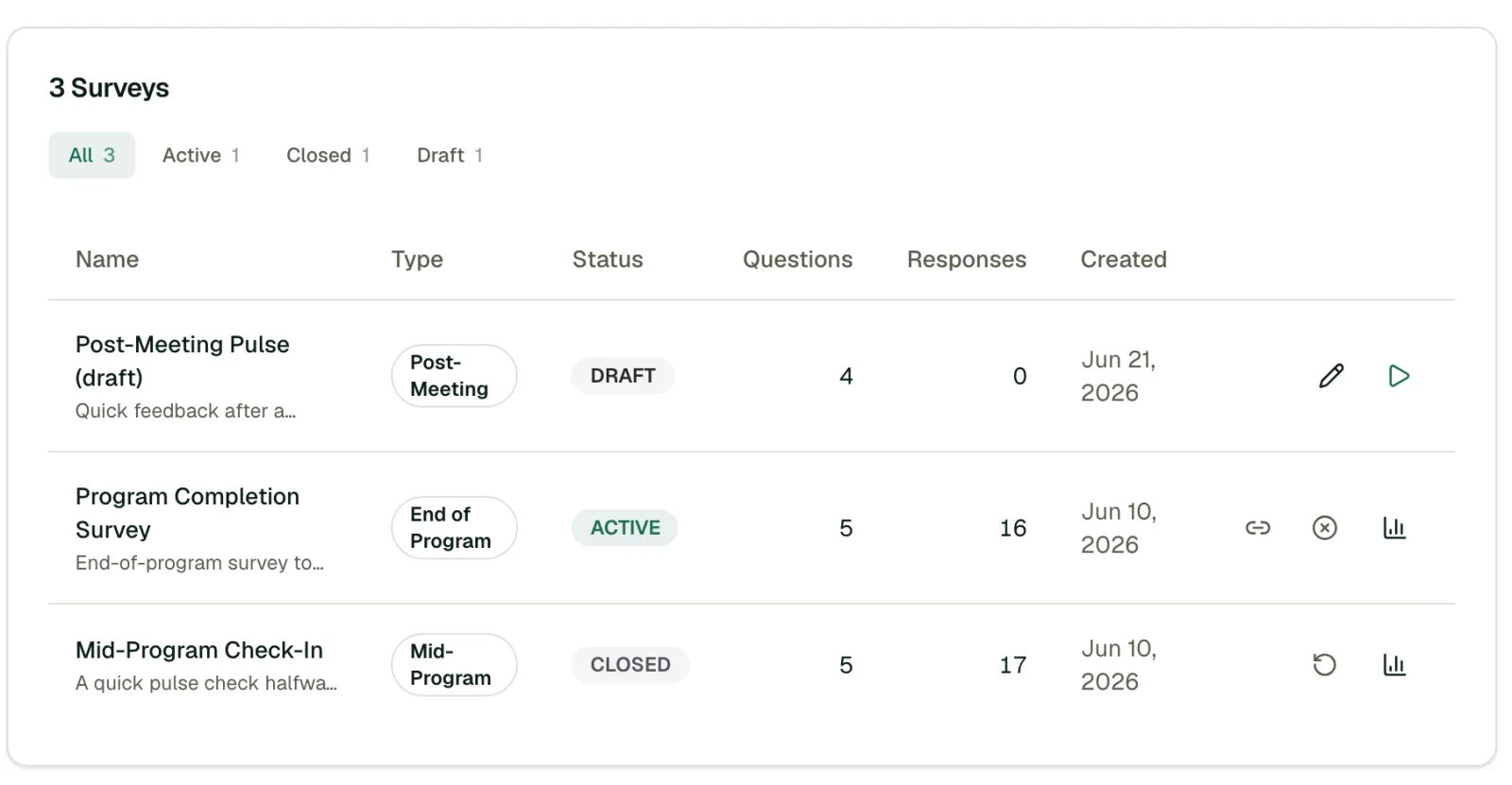
The Surveys page lists every survey with its status (Draft, Active, or Closed), question count, and response count. Use the filter tabs above the table to view surveys by status.
Creating a Survey
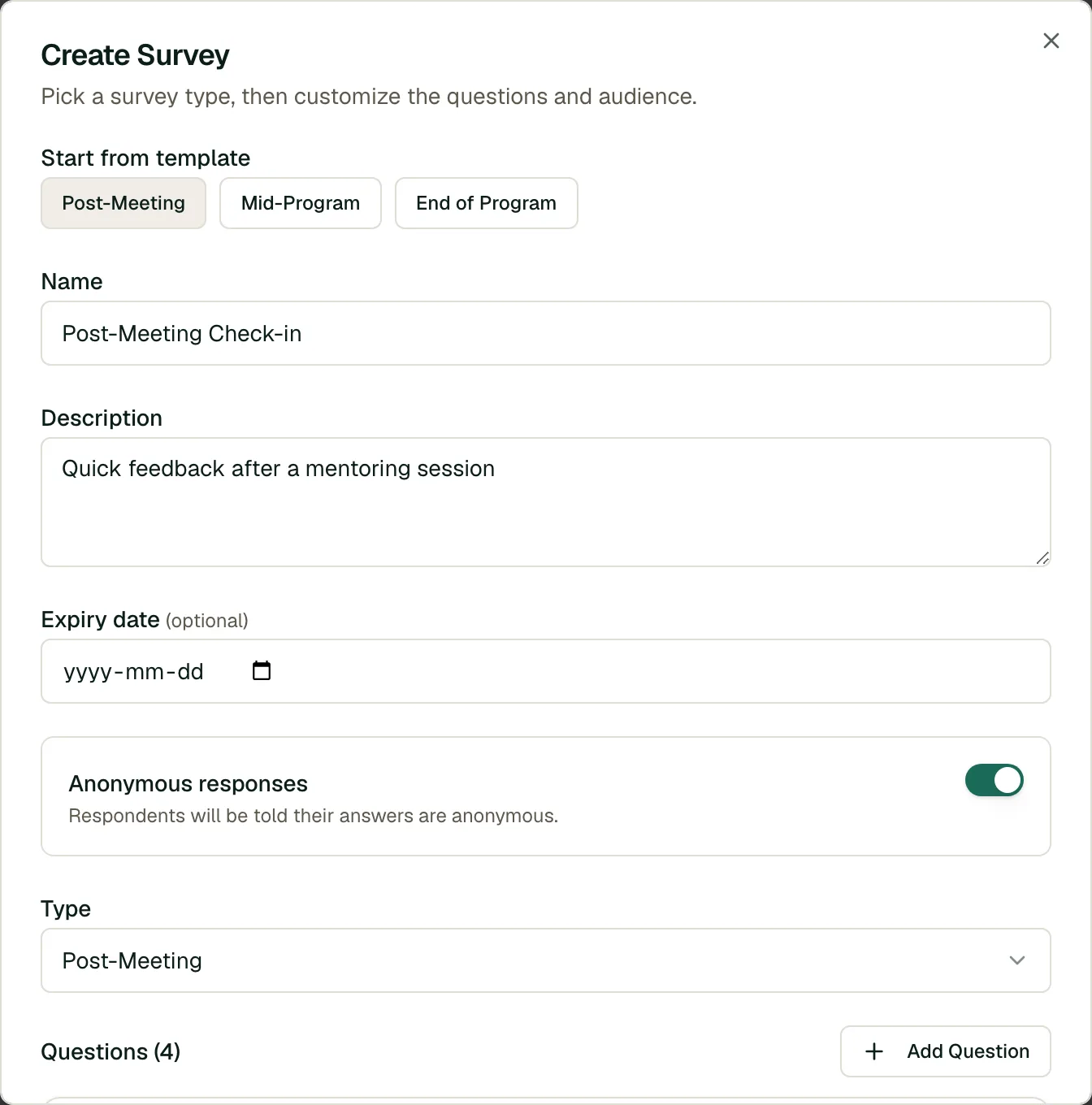
- Navigate to the Surveys page and click Create Survey.
- Start from a template (Post-Meeting, Mid-Program, or End of Program) to pre-fill questions, or build from scratch.
- Add a name and optional description, set an optional expiry date, and choose whether responses are anonymous.
- Add or edit questions (rating, NPS, free text, multiple choice, or yes/no) and choose the audience.
- Click Create Survey. It's saved as a Draft: nobody can respond yet.
Tip
Keep surveys short (5–10 questions) for higher response rates. Focus on questions that will change your behavior. If you wouldn't act on an answer, don't ask the question. You can always run follow-up surveys for deeper insights.
Question Types
- Rating (1-5): A five-point scale for quantitative feedback
- NPS (0-10): A 0-10 Net Promoter Score scale; this is what feeds the eNPS indicator on the Admin Dashboard
- Free Text: Open-ended responses for qualitative insights
- Multiple Choice: Respondents pick one option from a list you define (minimum two options)
- Yes / No: A simple binary question
Publishing, Sharing & Closing
Each survey row has actions that change with its status. Hover the icons at the end of a row:
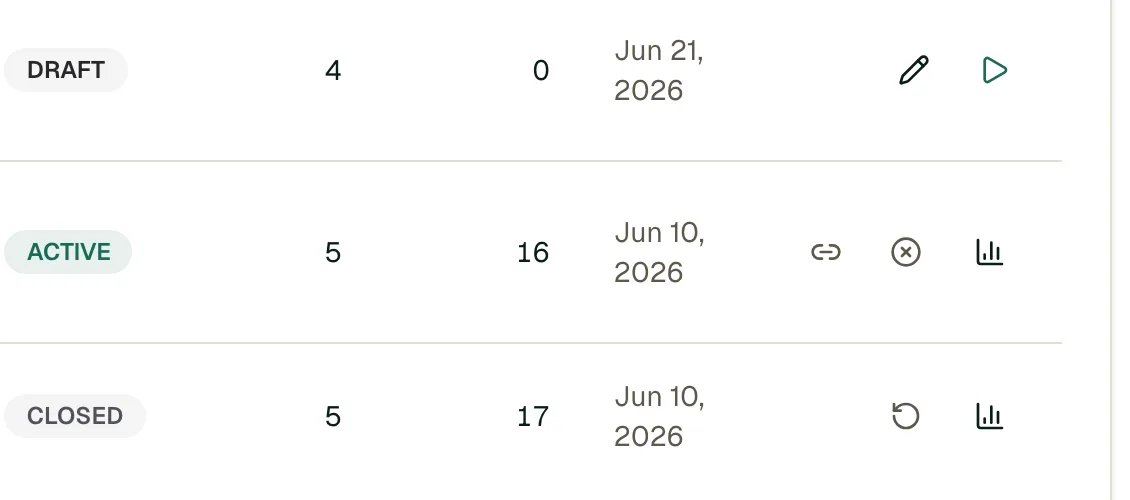
- Draft → ✏️ Edit to keep refining, or ▶ Publish to make it live so members can respond.
- Active → 🔗 Copy participant link to share the survey directly, ✕ Close to stop accepting responses, or 📊 View results.
- Closed → ↺ Reopen to accept responses again, or 📊 View results.
Viewing Results
Click the 📊 results icon on any published survey to see aggregated results. Toggle between By question (charts and summaries per question) and By respondent (individual submissions, anonymous by default).
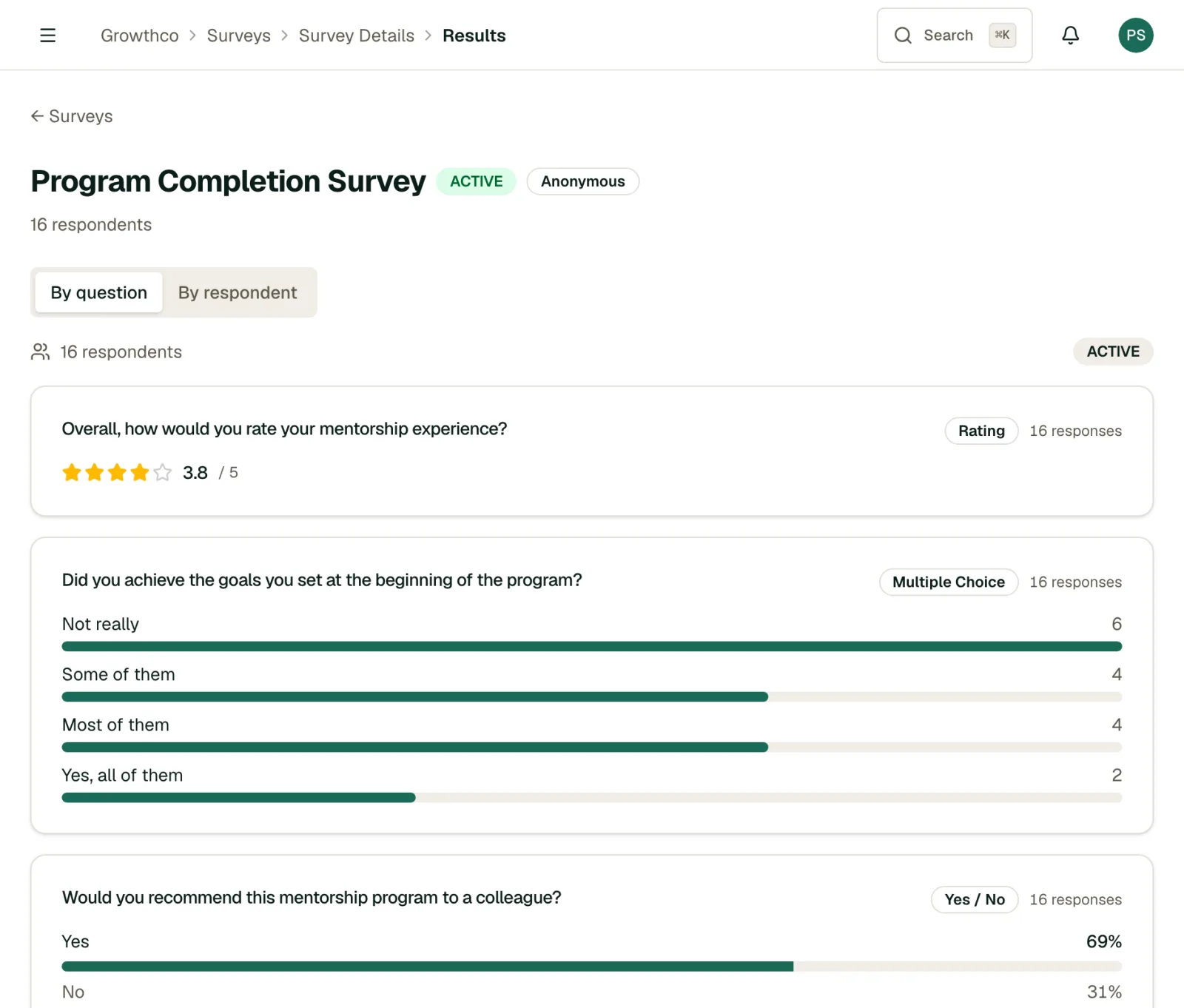
- Response rate: How many recipients have completed the survey
- Aggregated answers: Charts and summaries for each question
- Individual responses: Detailed per-respondent data (anonymous by default)
Note
Survey responses are anonymous by default. Set this with the Anonymous responses toggle when creating a survey. It can't be changed once the survey is active.
Getting the Most Out of Surveys
- Survey at key moments, not just at the end. Send a brief check-in at week 2–3 of a cohort to catch problems early, a midpoint survey to adjust course, and a final survey to measure outcomes.
- Ask about outcomes, not just satisfaction. "Did you achieve your primary goal?" is more useful than "Did you enjoy the program?" Satisfaction without progress is a warning sign.
- Close the feedback loop. Share aggregated survey results with participants and tell them what you're changing as a result. People give better feedback when they see it leads to action.
- Track trends across cohorts. A single survey is a snapshot. Comparing results across cohorts reveals whether your program is actually improving over time.
- Use rating scales for benchmarking, free text for discovery. Quantitative questions let you track trends; open-ended questions surface problems you didn't know to ask about.