Slack & Teams Integration
Connect Slack or Microsoft Teams to deliver MentorStack notifications where your team already works
Connecting MentorStack to Slack or Microsoft Teams routes key notifications (match responses, meeting reminders, goal and milestone updates) directly into the tools your people use every day. Higher visibility means better engagement.
Note
Slack and Teams integration is available on the Starter plan and above.
What gets sent
| Notification | Who receives it |
|---|---|
| Match accepted | The mentor only |
| Match declined | Bell and push only, deliberately not sent to chat |
| Meeting reminder | Both participants, before the scheduled meeting |
| Meeting recap ready | Both participants |
| Goal completed | The other participant, usually the mentor |
| Goal milestone completed | Other participants get a plain notification; the mentor gets a prompt to reflect instead |
| Engagement alert (match inactive) | Both participants, at most once a week |
| Admin nudge (manual check-in) | Both participants |
| Recognition moments: a mentee completes a goal, a match completes, or a mentee shares a reflection | The mentor only |
| Survey invitation | Everyone in the survey's audience |
| Announcement | Every active member by direct message, or one Slack channel post instead if you set an announcement channel |
Proposing a match and scheduling a meeting are sent by email only. They do not produce a Slack or Teams message.
The reminder lead time is set by your organization, 24 hours by default, and can be anywhere from 1 to 72 hours.
Users can adjust which notifications they receive in their own notification settings. Each switch there covers browser push and the chat message together. The in-app bell is not affected and always shows everything.
What the integration does not do
This is worth settling before you plan around it.
- Notifications are direct messages. The one exception is announcements. If you connect Slack and pick an Announcement channel, each announcement is posted once to that public channel instead of as individual direct messages. Nothing else is posted to a channel, and there is no way to post to a cohort or to a private channel.
- It does not create channels or groups, so it will not give your participants a place to talk to each other. If you want a community space alongside the program, create that channel in Slack yourself and share the link with participants; MentorStack has its own in-app messaging for mentor and mentee conversations.
- It is one integration per organization. Slack or Teams, not both. Connecting a second one is refused until you disconnect the first.
Connecting Slack
You need to be an admin in MentorStack, and you need permission to install apps in the Slack workspace.
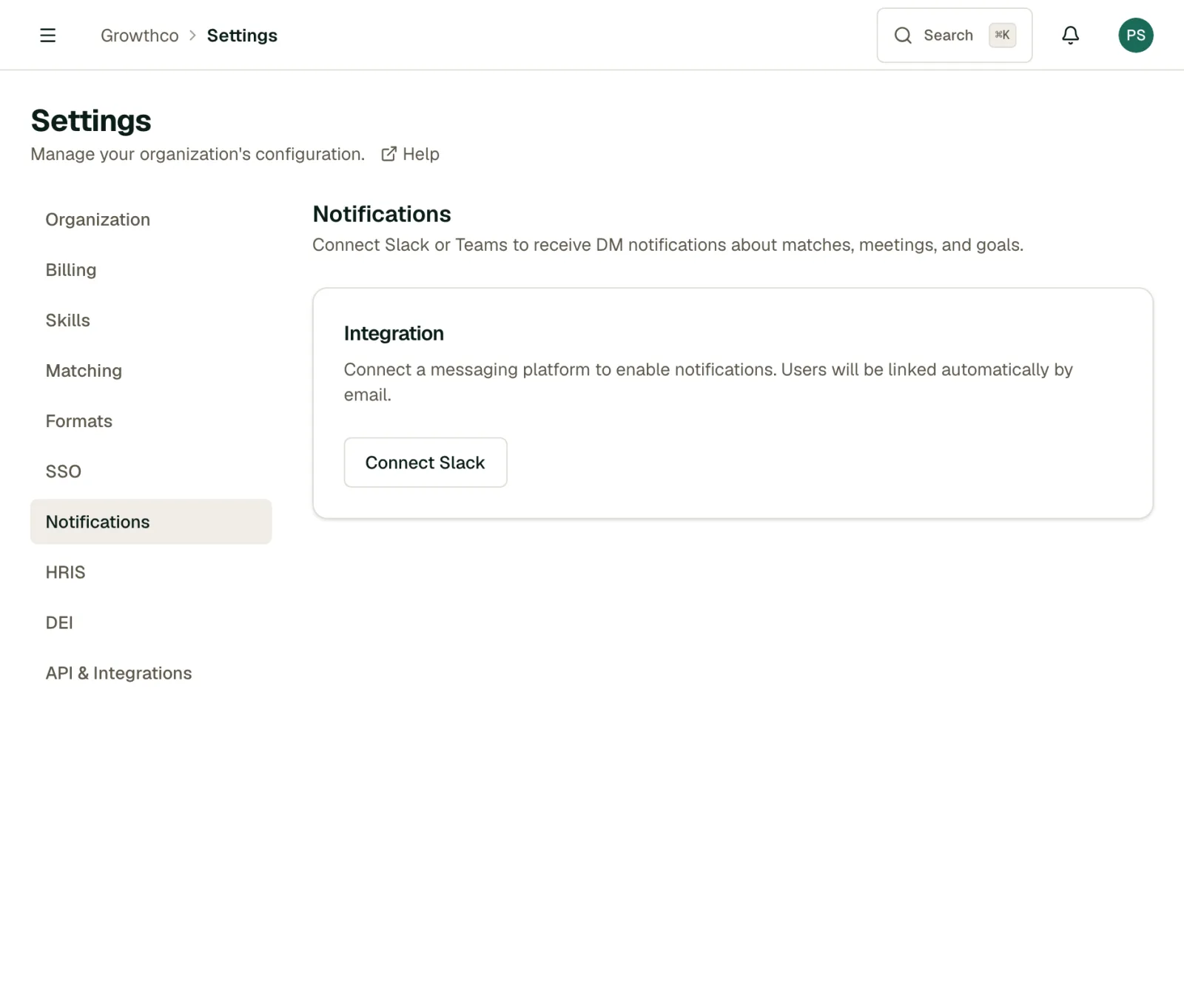
- Go to Settings → Notifications
- Click Connect Slack
- Slack asks you to approve MentorStack for the workspace. There is no Save step after this: approving in Slack completes the connection and returns you to Settings.
MentorStack asks Slack for five permissions: send messages (chat:write), post to public channels it has not been invited to (chat:write.public), list public channels so you can pick an announcement channel (channels:read), read the workspace's user list (users:read), and read those users' email addresses (users:read.email). It does not ask to read any of your messages.
Once connected, MentorStack can direct-message any Slack user whose Slack email matches their MentorStack account email.
Checking who is actually linked
After connecting, MentorStack matches your members to Slack accounts by email in the background. The Email matching row on the same Settings page shows the result, for example "12 of 15 members linked to Slack by email".
The three in that example get email only, not Slack DMs. That is almost always an email mismatch: someone joined MentorStack with a personal address and uses a work address in Slack.
Click Sync users to run the match again after you have invited a batch of people or a member has corrected an email in Slack or Teams. It reports back how many linked and how many it could not find.
Connecting Microsoft Teams
- Go to Settings → Notifications
- Click Connect Teams
- Sign in with a Microsoft account that has permission to install apps in your Teams tenant
- Approve the permissions in the Microsoft OAuth flow
As with Slack, there is no separate Save step, and connecting Teams requires disconnecting Slack first.
MentorStack uses the Teams bot framework to send chat messages to individual users.
User matching
MentorStack matches members to Slack/Teams users by email. If a member's MentorStack email doesn't match their Slack or Teams email, they won't receive chat notifications (they'll still get email). If the Slack or Teams email is the one that is wrong, the member can correct it in their chat account, and you can then click Sync users. A member's MentorStack email appears on their profile as read-only text.
Members who join after you connect are matched on the next sync, so run it again once a new cohort has accepted its invitations.
Disconnecting
To remove an integration, go to Settings → Notifications, find the connected service, and click Disconnect. Notifications for that service will stop immediately and fall back to email.
Disconnecting is also the first step in switching from Slack to Teams, or back.