DEI Metrics & Tracking
Enable optional demographic tracking to surface diversity trends in your mentorship program
MentorStack's optional DEI features let you collect voluntary demographic data from members and surface aggregate diversity trends in your analytics dashboard. All data is self-reported and participation is always optional.
Note
DEI metrics are available on the Growth plan and above.
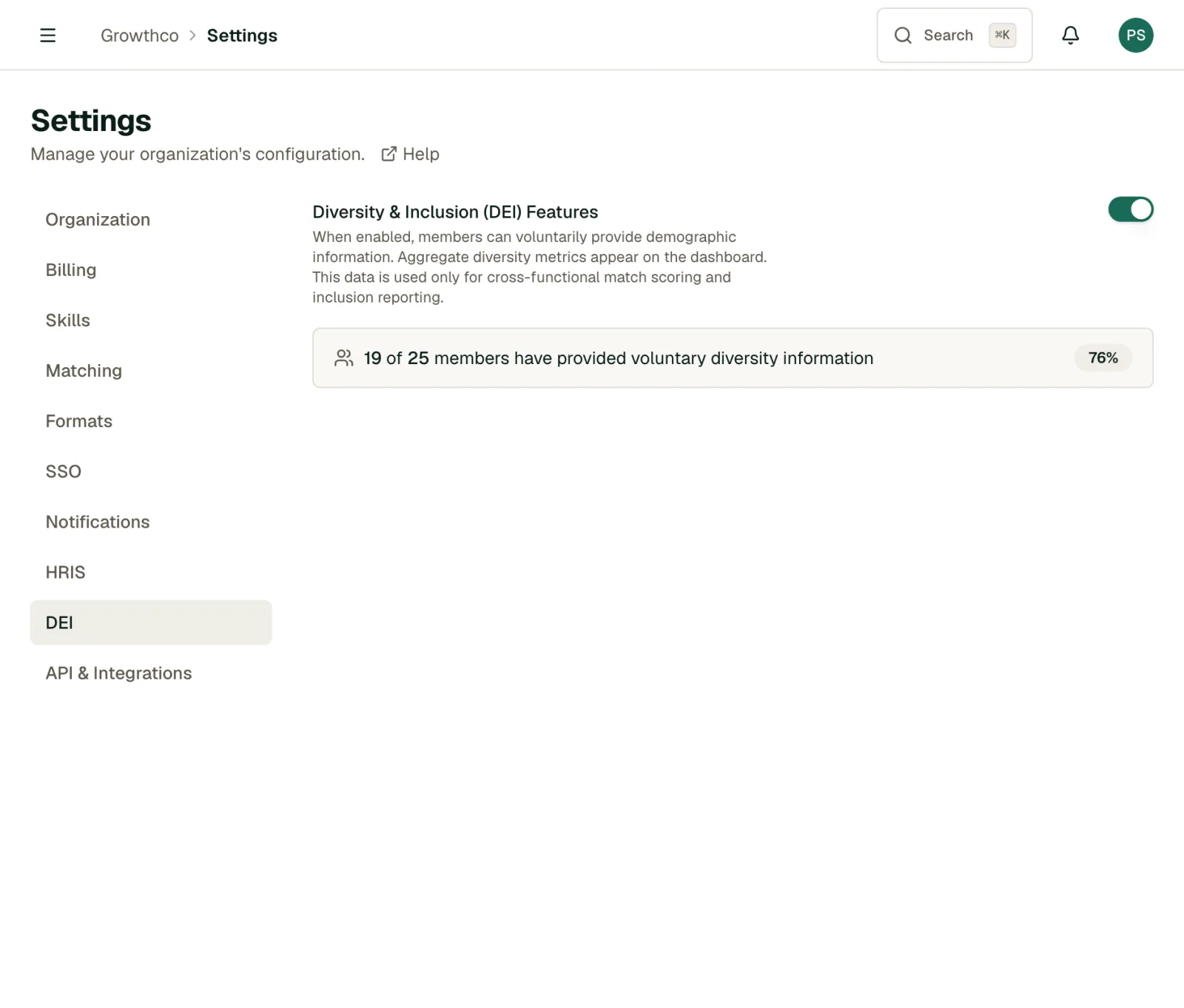
Enabling DEI tracking
Go to Settings → Program → DEI and turn on Diversity & Inclusion (DEI) Features. Once enabled:
- Members will see an optional Diversity Information section in their profile
- A Diversity & Inclusion Metrics card appears on your admin Dashboard with aggregate metrics
- The matching algorithm gives a small boost to cross-department (cross-functional) pairings
- The DEI tab shows how many members have provided diversity information
Members who have already created profiles are not prompted retroactively. They can fill in DEI data at their own discretion from their profile page.
What data is collected
Members can voluntarily share:
- Gender
- Ethnicity / racial background
All fields are completely optional. Members can leave any or all fields blank.
Privacy model
- Individual data is never visible to admins. You only see aggregated metrics (e.g., "42% of mentees identified as women"), never individual member records.
- Members control their data. While DEI is on, members can update or remove their DEI information at any time from their profile.
- Aggregate thresholds. If a demographic group has fewer than 5 members, MentorStack combines that group into "Not provided" so no individual can be identified.
DEI on the admin Dashboard
With DEI enabled, a Diversity & Inclusion Metrics card appears on your admin Dashboard showing:
- DEI data participation: how many members provided data
- Gender identity distribution across mentors and mentees
- Ethnicity / background distribution across mentors and mentees
- Cross-functional match rate (how often matches pair members from different departments)
- Department distribution across active members
DEI in matching
When DEI tracking is enabled, the matching algorithm factors cross-functional (department) diversity into scoring as a fixed, small share. Your four weights in Settings → Program → Matching are scaled down to make room for it, and they still total 100% on screen. Gender and ethnicity data you collect is used for aggregate analytics only. It does not influence match recommendations.
Note
The cross-functional diversity signal only affects suggested matches and recommendations. It has no effect on matches you create manually.
Disabling DEI tracking
Go to Settings → Program → DEI and turn the switch off. A warning explains the change first. The diversity card disappears from your Dashboard, and the diversity fields are hidden from member profiles. Existing member DEI data is retained and is restored if you turn DEI back on. No data is deleted.