Managing Members
How to invite, manage, and deactivate members in your organization
Your program is only as strong as the people in it. A healthy member pipeline (with enough mentors to avoid overload, engaged mentees who are ready to invest in their growth, and a smooth onboarding experience) is the foundation everything else builds on. The Members page is where you manage everyone in your mentorship program: mentors, mentees, and other admins.
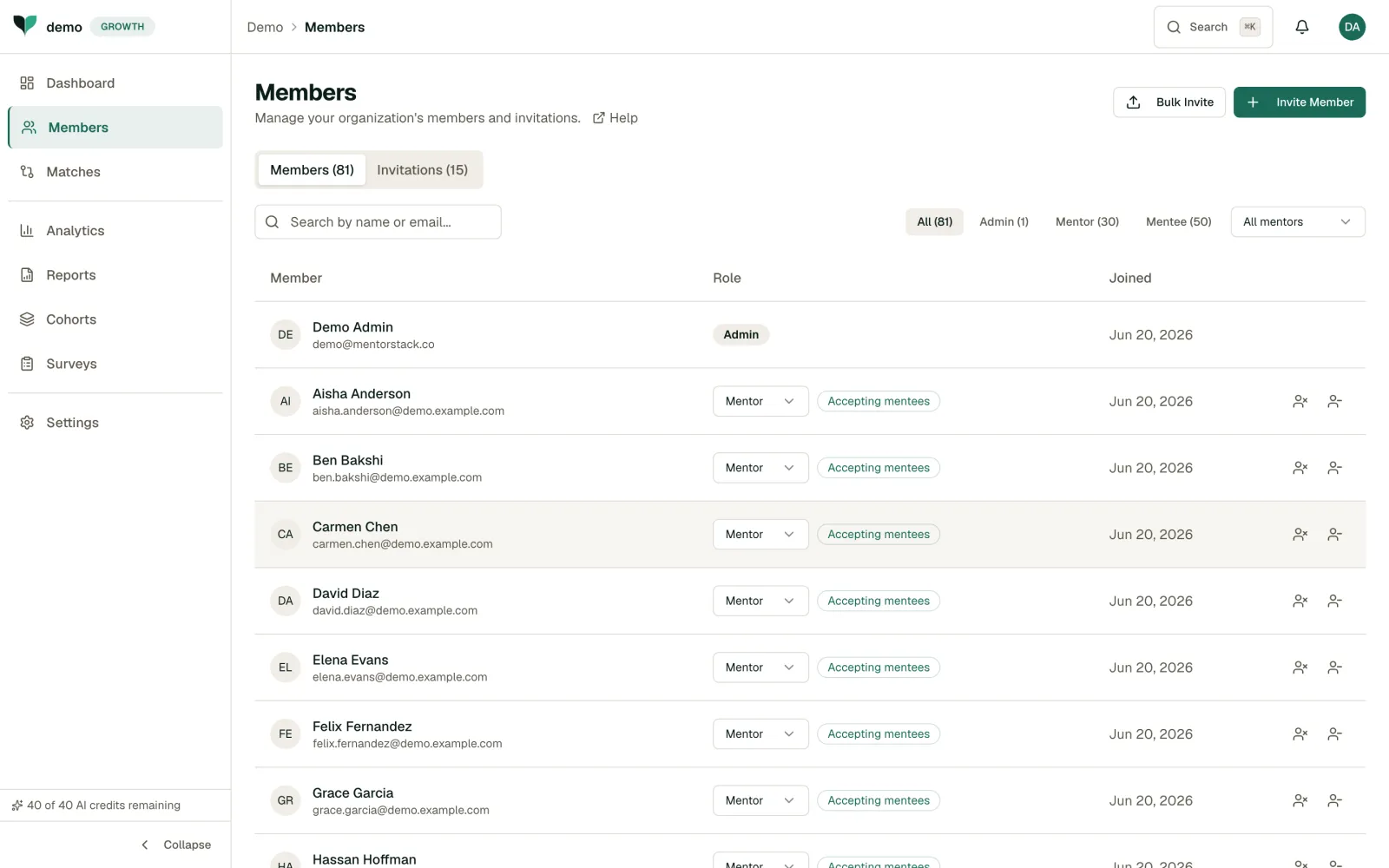
Inviting Members
You have two ways to invite people, both at the top of the members list.
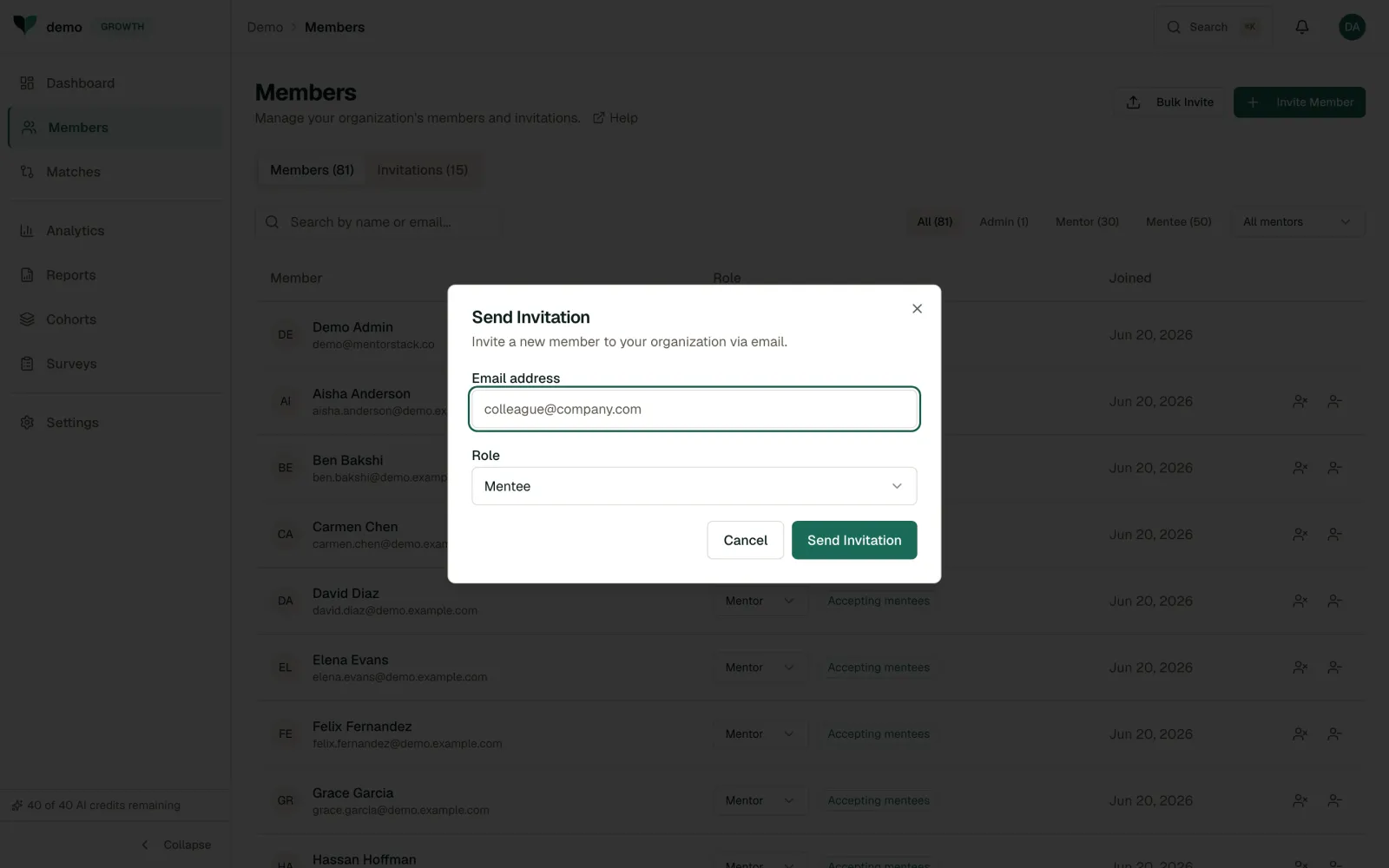
Invite Member: for one person at a time:
- Click Invite Member.
- Enter the person's email address.
- Select their role: Mentor or Mentee.
- Click Send Invitation.
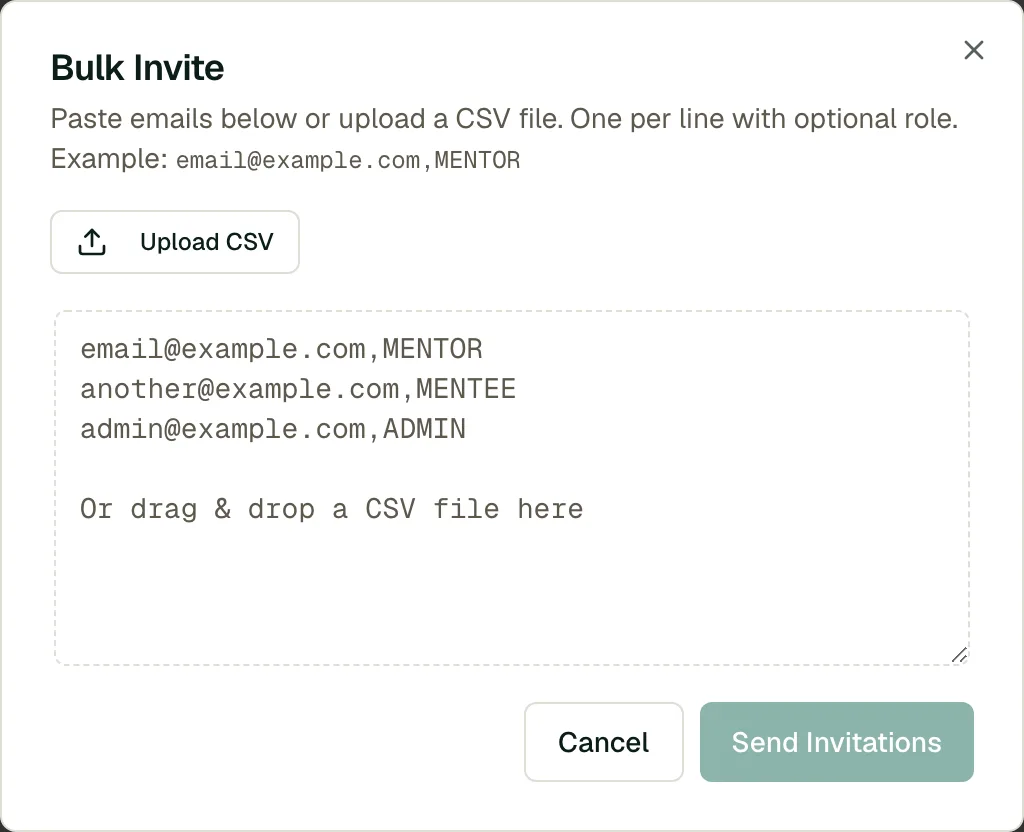
Bulk Invite: for many people at once:
- Click Bulk Invite.
- Paste one email per line, each optionally followed by a role (for example
colleague@example.com,MENTOR), or upload a CSV file. - Click Send Invitations.
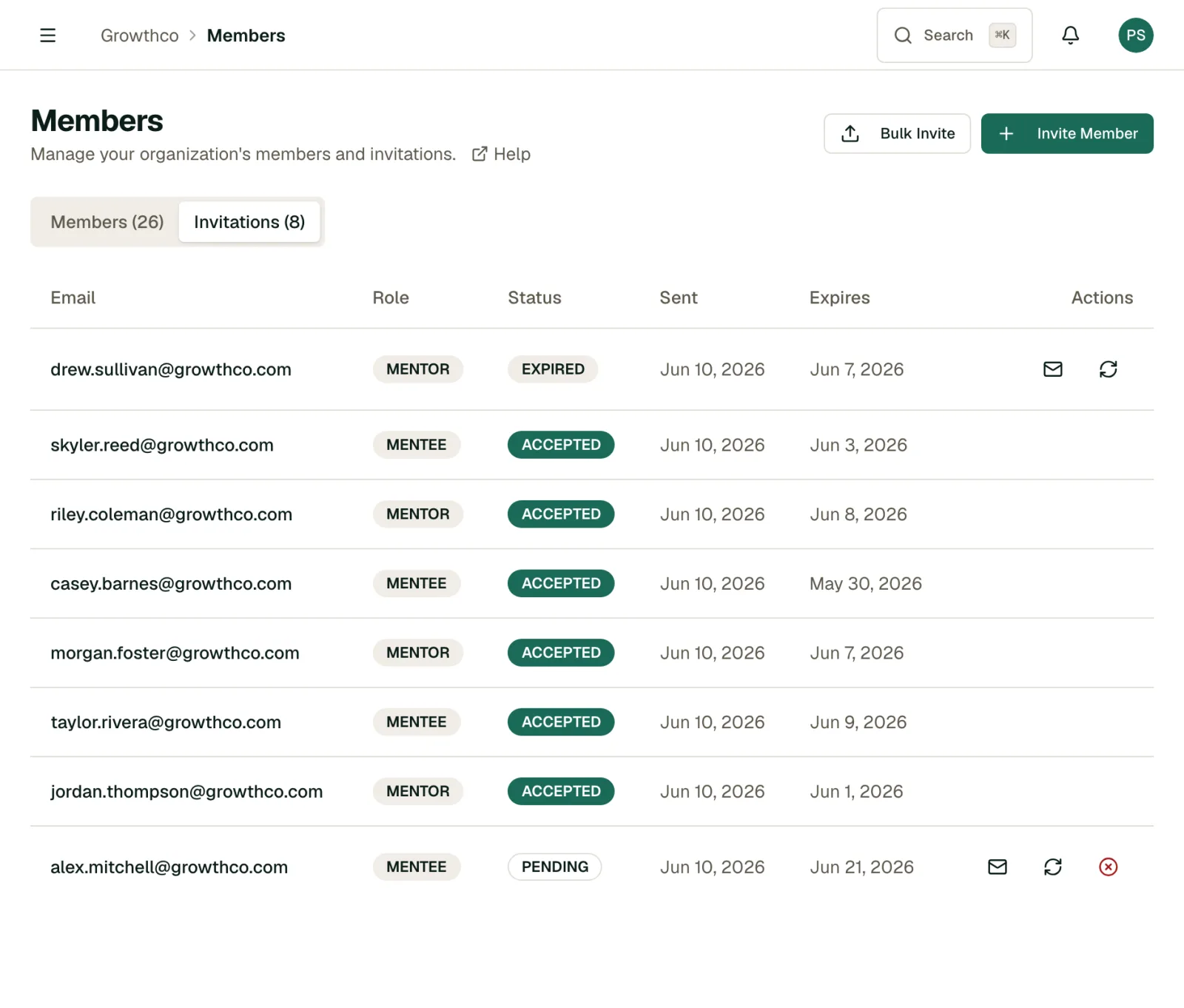
Invited users will receive an email with a link to join your organization. You can track invitation status in the Invitations tab.
A pending invitation holds a seat until it is accepted or revoked, so your seat count reflects invites you have sent as well as members who have joined. If you are close to your limit, revoking a stale invitation frees the seat right away.
Tip
Members can hold both Mentor and Mentee roles simultaneously if your program supports peer mentoring. This is particularly effective in flat organizations where experienced individual contributors can both teach and learn from each other.
Importing an existing program
The program import guide previews the CSV workflow prepared for release. It explains how to import records and send access invitations separately. Production availability has not been verified.
Managing Existing Members
From the members list, you can:
- View profile: See a member's details, skills, and activity history
- Change role: Promote a mentee to mentor, or grant admin access
- Deactivate: Remove a member's access while preserving their data
Filtering and Search

Use the search bar to find members by name or email. Filter by role (Mentor, Mentee, Admin) to narrow the list.
Warning
Deactivating a member will end all their active matches. Make sure to communicate with affected pairs before deactivating.
Getting the Most Out of Member Management
- Maintain a healthy mentor-to-mentee ratio. Aim for at least one mentor for every two mentees. If you're short on mentors, recruit before launching your next cohort. Overloaded mentors lead to poor experiences for everyone.
- Don't skip onboarding. A brief welcome message that explains what to expect, how often to meet, and where to find resources makes a measurable difference in early engagement.
- Review the invitations tab regularly. Pending invitations that sit for weeks signal friction in your signup process. Follow up personally or simplify the onboarding flow.
- Use profiles to inform matching. Encourage members to complete their profiles with skills, goals, and interests. This data is what turns matching from guesswork into strategy.