Two-Factor Authentication
Set up 2FA on your account to add a second layer of protection beyond your password. A MentorStack help center guide.
Two-factor authentication adds a second verification step when you log in: a time-based code from an authenticator app. Even if your password is compromised, your account stays protected. For password changes and other account settings, see Your Profile & Account.
Note
Every user sets up 2FA for their own account from Settings → Security: mentors, mentees, and admins. Admins can also require it for the whole organization, as covered below.
Setting up 2FA
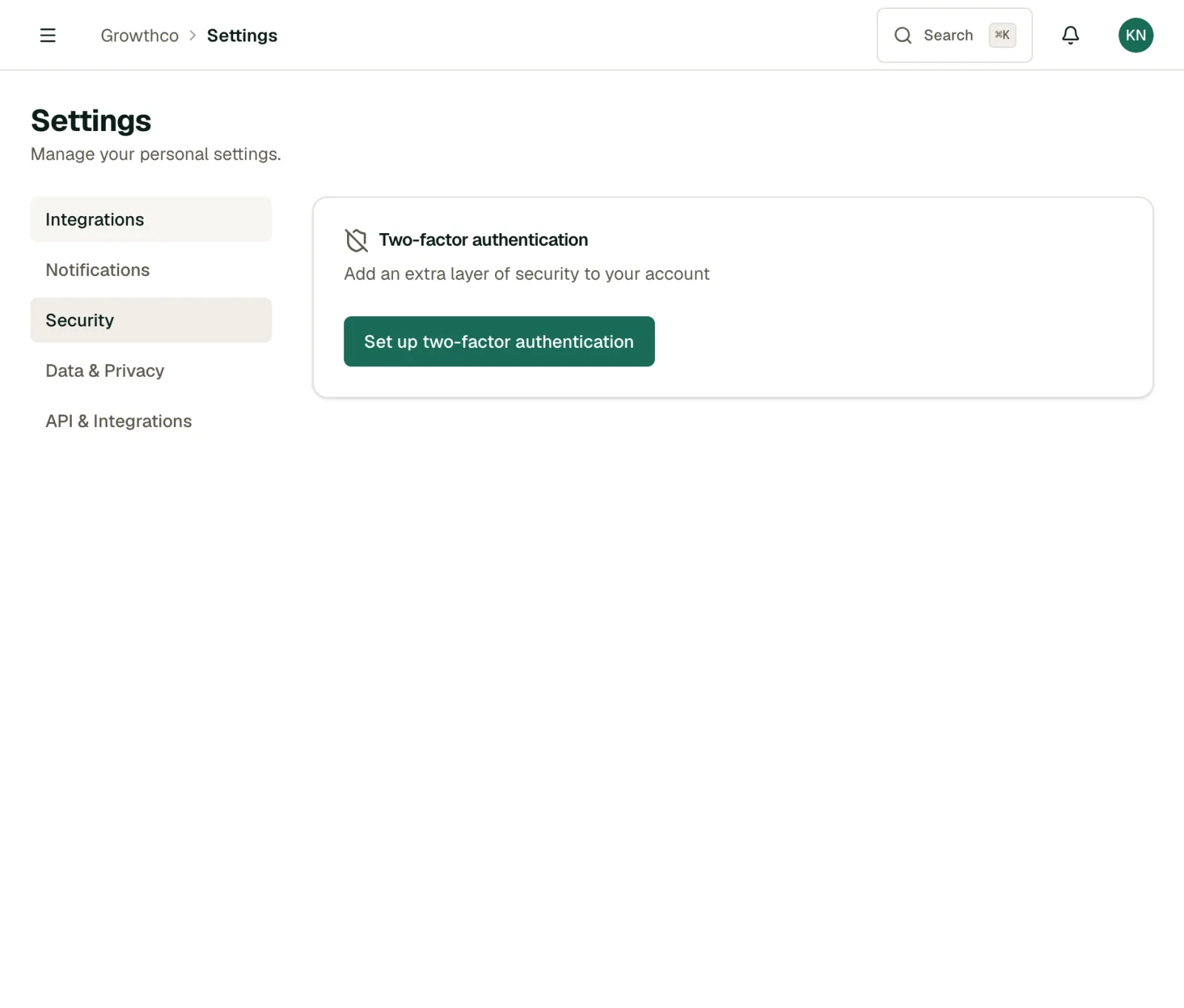
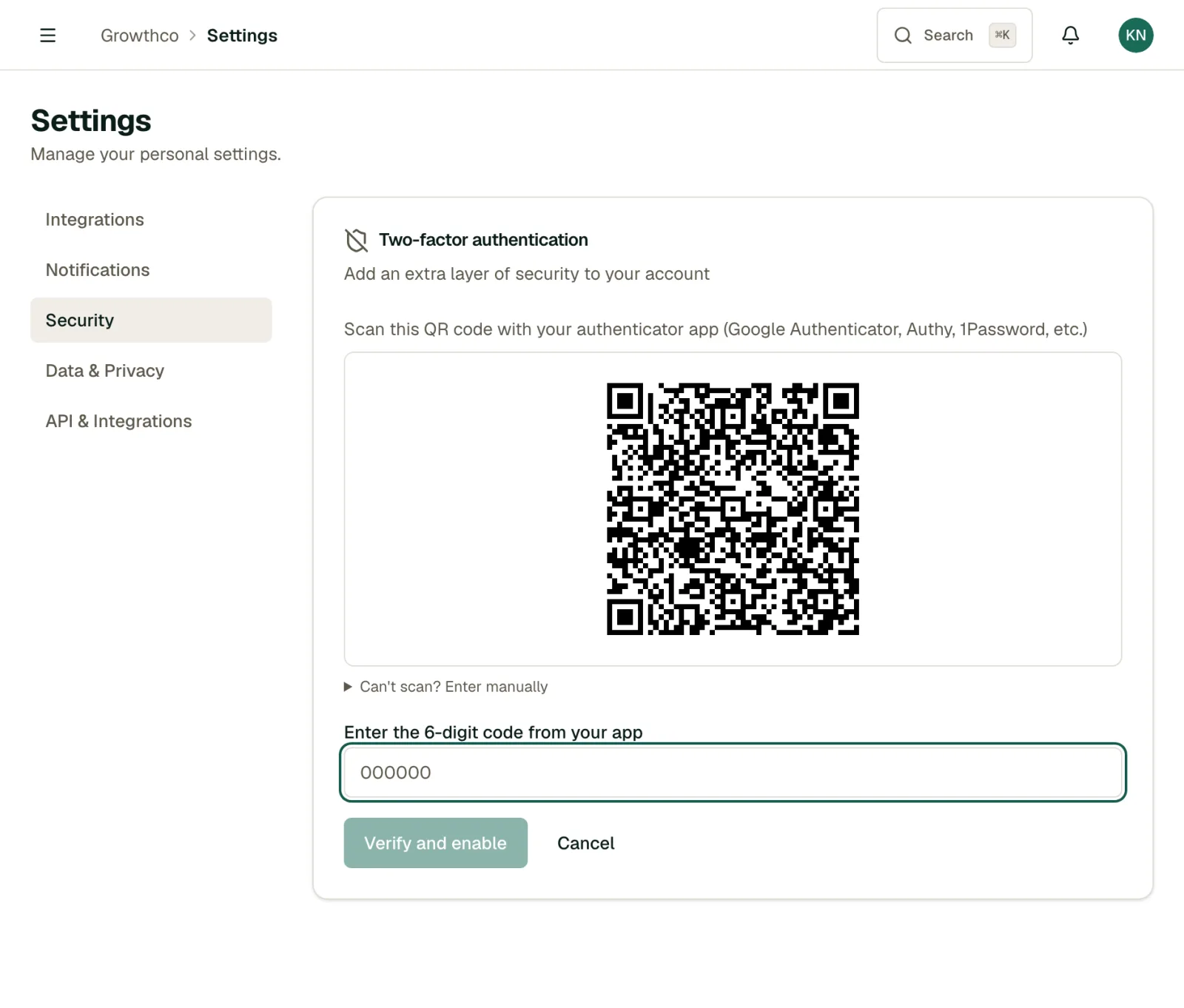
- Go to Settings → Security
- Click Set up two-factor authentication
- Open an authenticator app on your phone (Google Authenticator, Authy, 1Password, or any TOTP-compatible app)
- Scan the QR code shown in MentorStack
- Enter the 6-digit code from your authenticator app to confirm setup
- Save your recovery codes in a safe place: you'll need them if you lose access to your device
Once enabled, you'll be prompted for a code each time you log in.
Recovery codes
During setup, MentorStack generates 10 one-time recovery codes. Each code can only be used once. Store them somewhere secure (a password manager, printed sheet, or encrypted notes file).
If you lose your authenticator device and don't have recovery codes, contact your admin or MentorStack support to verify your identity and reset 2FA.
Disabling 2FA
- Go to Settings → Security
- Click Disable MFA
- Enter your current password and a code from your authenticator app, then confirm
Note
If your organization has enforced 2FA for all members, you cannot disable it yourself. Contact your admin if you need an exception.
Organization-enforced 2FA (admins)
Admins can require 2FA for all members in their organization from the SSO tab:
- Go to Settings → SSO
- Toggle Require two-factor authentication
This toggle works even on plans without SSO configured; it is never plan-gated. Members who haven't set up 2FA will be prompted to do so on their next login. They won't be able to access the platform until 2FA is configured. For broader sign-in controls, admins can also configure Single Sign-On (SSO).